Hi-Fi Audio Sim
A hi-fi separates rack for the Mac, built around audio cassettes and Digital Audio Tapes that really record.
Hi-Fi Audio Sim started out as a bit of nostalgia that turned into a working audio system for your Mac. It is built around tape: audio cassettes with their two sides, their hiss and their wavering pitch, and Digital Audio Tapes with start IDs, absolute time and AMS. You load one, press record, and it runs in real time, the way the machines did. A hard disk recorder sits alongside them for when you want the same deck without the tape.
It is a reconstruction of the hi-fi separates we grew up with, right down to the tape counter, the graphic equaliser meters and the way the spools take a moment to get up to speed. Everything on the rack works with your Mac and uses the input and output devices you have connected. A bit of fun, but with some useful features too. Enjoy.
Coming soon to the Mac App Store macOS 14 or later. Universal, for Apple silicon and Intel Macs.
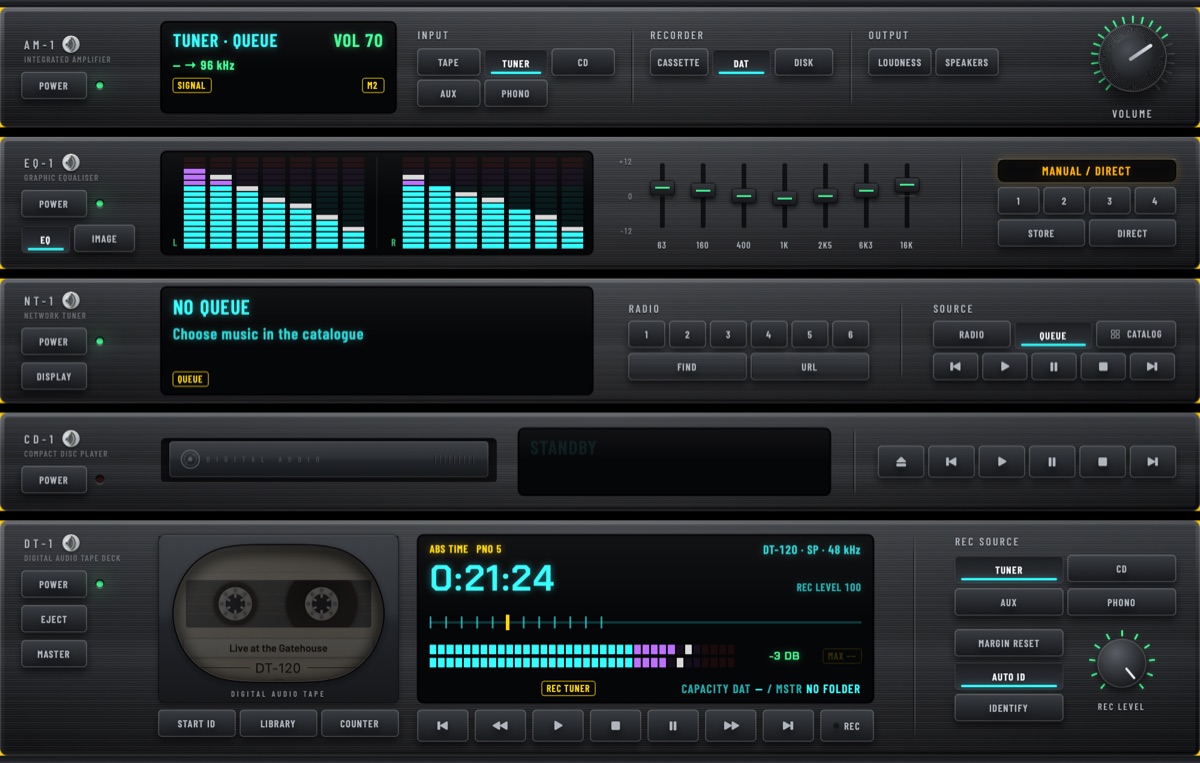
Hi-Fi Audio Sim is a rack of separates: an integrated amplifier, a graphic equaliser, a CD player, a network tuner, and a recording deck that is a cassette deck, a DAT deck or a hard disk recorder, whichever you choose. It records in real time, writes track marks as it goes, and plays back with track search, subcode marks and a counter that behaves the way the machines did.
What it does
- Records to audio cassettes, C46 to C120, in Type I, II or IV, with two sides, auto reverse and the tape sound that goes with each one. Turn that sound off and the recording plays exactly as it was stored.
- Records to DAT tapes in SP, LP or 44.1 kHz, with start IDs, absolute time and AMS track search.
- Records to a hard disk when you want the same deck without a tape: no length to choose, no sides, and it carries album covers.
- Records from a CD, a radio station, your own music, or a line input on your audio interface, so a turntable or a real cassette deck goes straight on.
- Records what another app on your Mac is playing, with no audio interface at all. Point an input at one app by name, or at everything the Mac is playing, and it goes onto a tape like any other source.
- MASTER keeps a lossless file alongside whatever you are recording, at the full rate and depth your audio device gives it. That is high resolution if your hardware is, 24 bit at 96 or 192 kHz, while the tape stays 16 bit as a tape should.
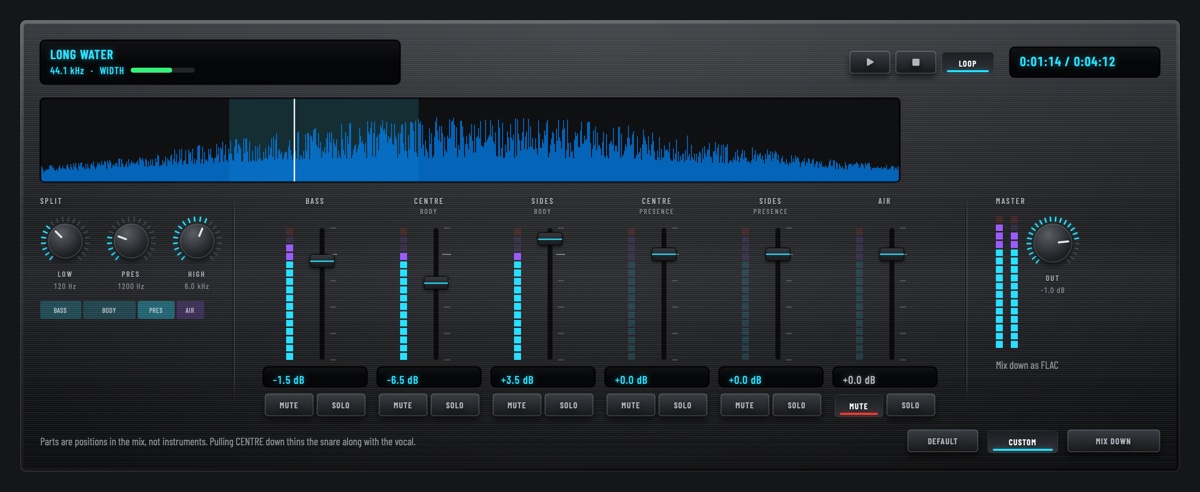
- Takes a finished recording apart on a remix desk and mixes it back down.
- Plays music from folders on your Mac, from mounted network shares, and from DLNA servers on your own network, all in one catalogue, with playlists and queues across the lot.
- Names the tracks on an audio CD by looking the disc up, and writes those names onto the tape as it dubs.
- Exports to FLAC, ALAC, WAV or AAC, with cover art the app draws for each tape, when you want it out again.
Two racks
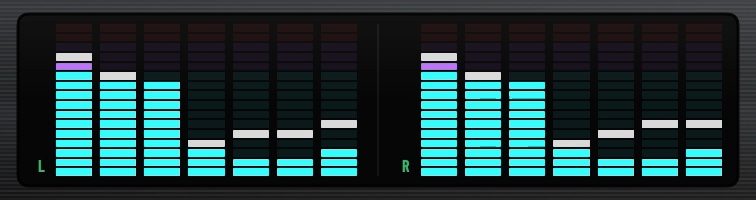
The modern rack is five slim units, amplifier, equaliser, tuner, CD player and the recording deck, sized to suit a laptop screen as well as a large one. The vintage rack is a late seventies stack of three, an amplifier, a tuner and a cassette deck, with needle meters, a lit dial and keys that press in. Switch between them whenever you like from the Rack menu, and choose from three finishes in Appearance.
A lossless copy, as you record
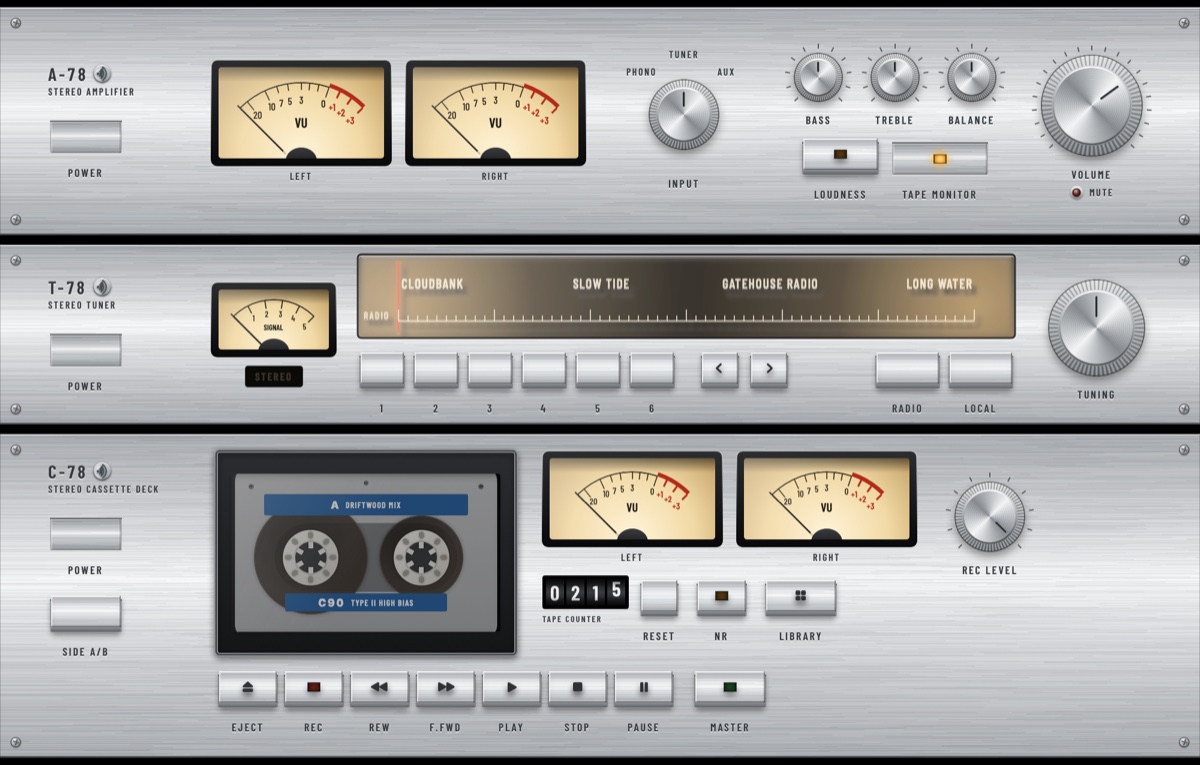
Press MASTER and the deck writes a second copy while it records, an ordinary file on disk beside the tape. It is taken at the full rate and depth the source gives it, so if your audio interface runs at 24 bit and 96 or 192 kHz, that is what you keep. The tape stays 16 bit, as a tape should. Use it with a tape in the deck or with the bay empty, when the rack becomes a plain high resolution recorder.
Takes land in Master Recordings, where you name them, add covers, split a long recording into tracks, cut the adverts out of a radio session, and publish the result into your music library in whatever format you like.
It can name the tracks for you
A tape recorded off the radio, or through a line input from a turntable or an old cassette, arrives with its programs unnamed. Press IDENTIFY and your Mac listens to what is playing and writes the title and the artist onto the tape, where they stay: on the display as it plays, on the inlay card, in a search of the shelf, and in the tags of anything you export.
Identify Tracks in Edit Tape does a whole tape in one go. It spools to each program, plays just enough of it to be recognised, and fills in what it finds, so forty programs take about a quarter of an hour instead of the six hours playing them would. It fills blanks and never writes over a name you typed, and a program it cannot place is left alone rather than guessed at: a track still called Track 7 is more use than a confident wrong name. Master Recordings has the same thing for files, track by track.
The recognising is Apple's own, through a shortcut you install from Settings in one step. The app never records or sends any audio. It asks Shortcuts to run your shortcut and reads back the title and artist, and you can use a different shortcut, or none. There is more in the privacy policy. It needs macOS 14.4.1 or later.
It listens to whatever your Mac's sound input is set to. An audio interface with a loopback is the one to want, since the sound crosses digitally and the room stays quiet. Otherwise it listens through the built-in microphone, so the music has to be audible and nothing else on the Mac should be playing, or it will dutifully name your tape after that instead.
The remix desk
Send any finished recording to the desk and it comes apart into six faders: bass, air, and the centre and the sides of two middle bands. Push them around while it plays, loop a few bars to judge a change, and compare your mix against the recording with one key. Mix it down and it can take the original's place when you publish.
Your recordings
Tapes are files you own, in a folder you choose. The Deck Library lists what is on each one, names the tracks, and lets you reorder or export them.

HiFi Player for iPhone
A free companion app that takes your tapes with you. Send one across from the Deck Library and it plays on the phone with its sides, its track marks and its cassette sound, through headphones, Bluetooth, CarPlay or AirPlay. It only reads, so a tape on your phone is a copy and nothing the player does can change it.
Coming soon to the App Store iOS 15 or later. Free, and it comes with two demo tapes so you can hear it before you have any of your own.

HiFi Rack for iPad
Where the phone draws a tape, the iPad draws the rack. HiFi Rack puts the amplifier, the equaliser, the tuner and a recording deck on one screen, working the way they do on the Mac: the same seven bands and four memories, internet radio with six presets, and cassettes, DAT tapes and hard disks with their sides, their track marks and their cassette sound. Hide the boxes you are not using and the rest grow to fill the screen.
It plays. It does not record, so nothing on the iPad can change a recording. It is a separate app with a licence of its own.
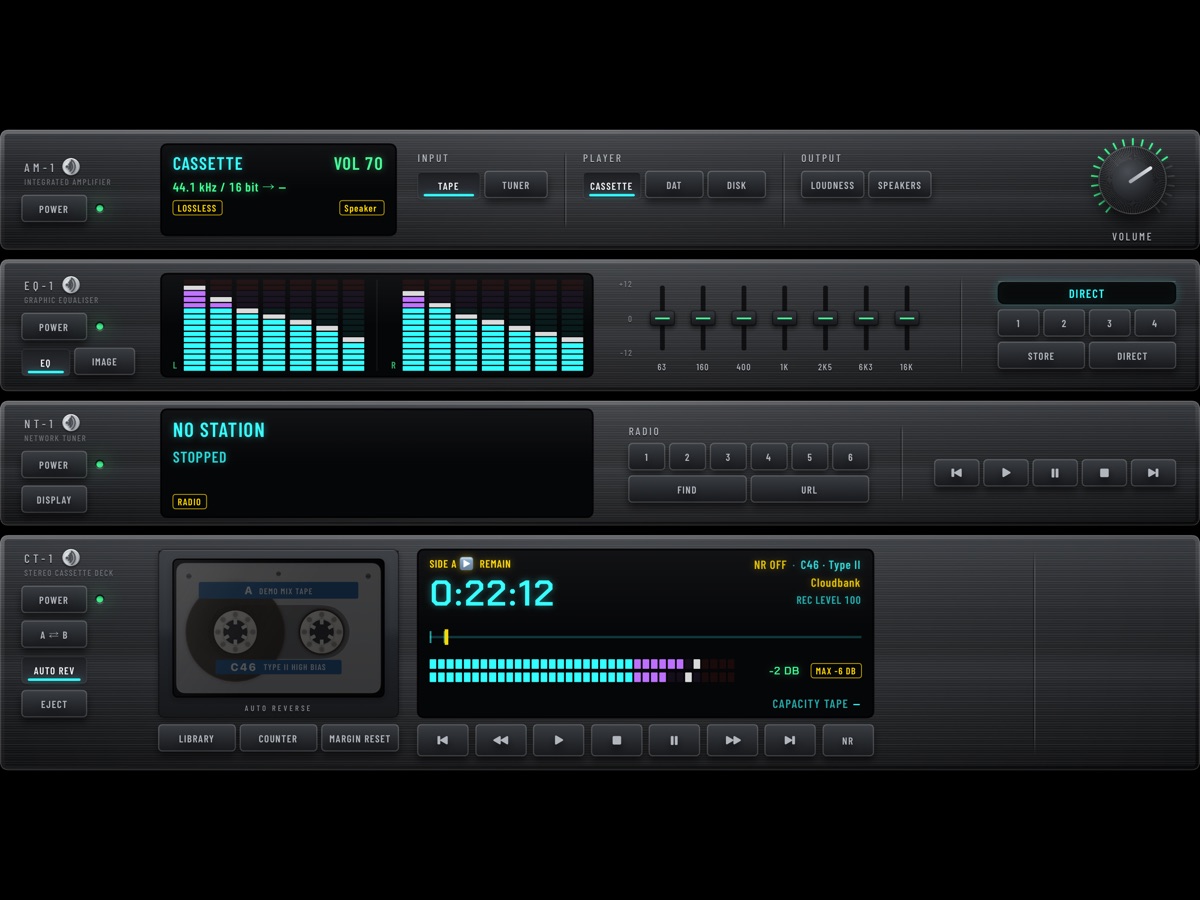
Coming soon to the App Store iPadOS 16 or later. It comes with three demo recordings, one for each machine it draws, so there is something to play straight away.
Making, editing and naming tapes all stay on the Mac. Questions about the player are on the support page.
Questions before it is out?
None of the three apps is on the App Store yet. If there is something you want to know about them in the meantime, ask: support@hifiaudiosim.com.
Requirements
macOS 14 or later. Universal, so it runs natively on both Apple silicon and Intel Macs.